
Introduction
Almost all of the data for Outlook is stored in .pst files, which means that by backing it up you protect the following information: Emails (in all folders, including archived items), Calendar entries, Contacts, Tasks and Notes. In order to have a complete backup of Outlook data, it is not enough to back up only the .pst files, but the following items too:
- Personal Address Book
- Offline Address Book (2010)
- Rules
- Signatures
- Stationery and Templates
- Menu or toolbar customizations
- Nicknames / Suggested contacts
- Navigation Pane settings (this file includes Shortcuts, Calendar, and Contact links).
- Dictionary
- Send/Receive settings
- Print styles
- Custom forms
- Registered Microsoft Exchange extensions
By using Import and Export option we can back up the following this.
- Inbox
- Draft
- Sent items
- Deleted items
- Calendrer
- Contacts
- Important
- Journal
- Junk E-mail
- Notes
- Outbox
- RSS feeds
Step by Step configuration to Import and export the data files.
- Open file >Open & Export.
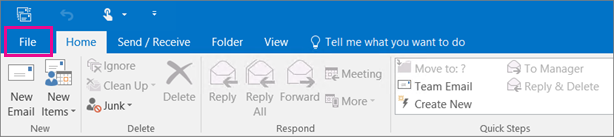
PIC 1
- choose Open & Export > Import/Export.
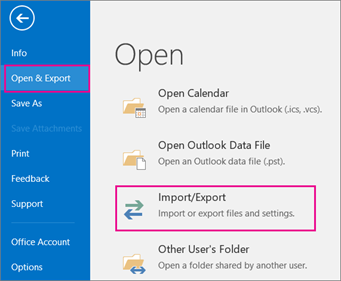
PIC 2
- Choose Export to a file.
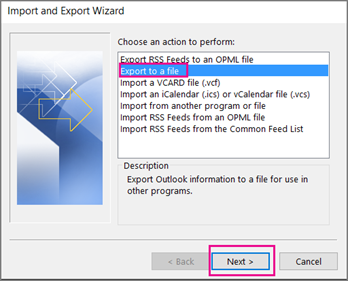
PIC 3
- Click Outlook Data File (.pst), and then click Next.
Select the name of the email account to export,
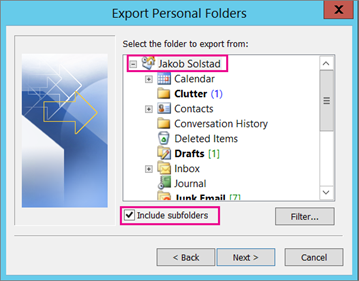
PIC 4
Click Browse to select where to save the Outlook Data File (.pst). Type a file name, and then click OK to continue
- Click Finish.
- Outlook begins the export immediately unless a new Outlook Data File (.pst) is created or a password-protected file is used.
Configuration to import the already exported data file
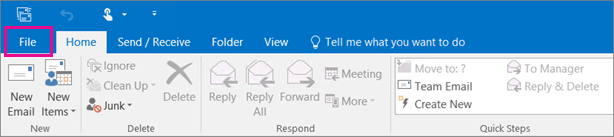
PIC 5
- Choose Open & Export > Import/Export.
PIC 6
- Choose Import from another program or file, and then click Next.
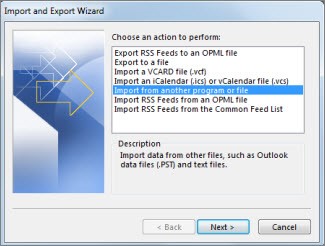
PIC 7
- Choose Outlook Data File (.pst) and click Next.
Browse to the .pst file you want to import. Under Options, choose how you want to deal with emails and contacts, then choose Next.
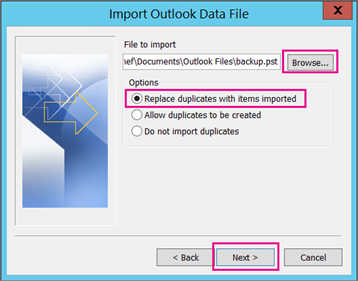
PIC 8
- if a password was assigned to the Outlook Data File (.pst), enter the password, and then click OK.
- choose Finish. Outlook starts importing the contents of your .pst file immediately.
Create a backup copy of your rules
- Click the File tab.
- Click Manage Rules & Alerts.
- If you have more than one email account, in the Apply changes to this folder list, select the Inbox that you want.
- Click Options.
- Click Export Rules.
- In the File name box, type the path and file name for the set of rules that you want to export.
- Click Save.
By default, you can find the Signatures folder in the following location
drive:\Users\<username>\AppData\Roaming\Microsoft\Signatures
Backing up your signatures
After you’ve carefully created your signatures, you probably want to back them up or migrate them to another or new computer. The process is very simple; copy all the files from the Signatures folder to your backup location. To restore them, you can copy them back to the Signatures folder.
By default, you can find the Signatures folder in the following location;
- Windows XP
C:\Documents and Settings\%username%\Application Data\Microsoft\Signatures - Windows 8, Windows 7 and Windows Vista
C:\Users\%username%\AppData\Roaming\Microsoft\Signatures

PIC 9
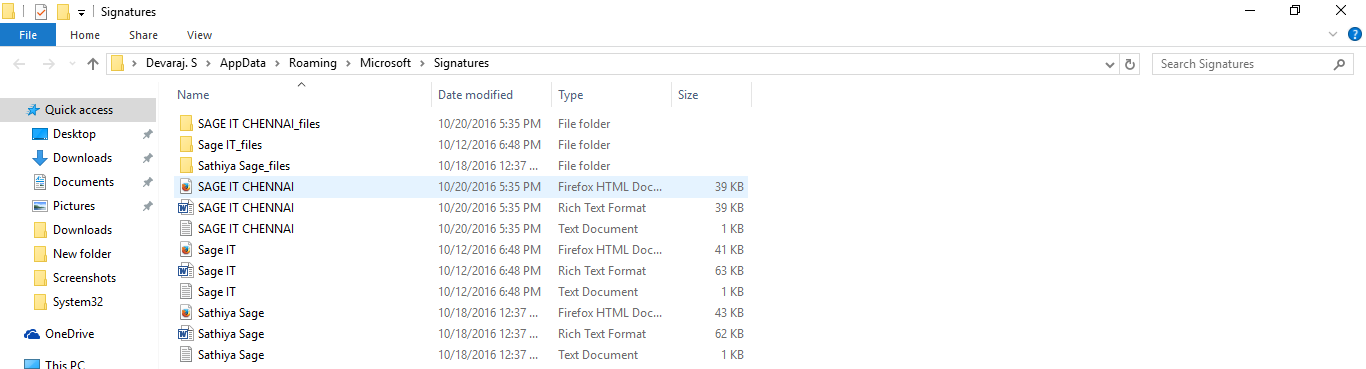
PIC 10
Copy stationery from the original computer
- Exit Outlook.
- Open the folder where stationery files are saved.
Because the Stationery folder is hidden folder, the easiest way to open the folder is to use the command %APPDATA%\Microsoft\Stationery on the Start menu.
- Copy the stationery files.
Copy stationery to the destination computer
- Exit Outlook.
- On the destination computer, open the folder %APPDATA%\Microsoft\Stationery.
- Start Outlook.
Copy and back up the folder with your Outlook templates
If you need it is possible to retrieve your lost or deleted template file in Outlook 2013-2003.
The folder with your templates is stored here:
- C:\Users\USER ACCOUNT\AppData\Roaming\Add-in Express\Template Phrases for Microsoft Outlook\
If Application Data or AppData Folder is hidden, please do the following:
- Select Tools->Folder Options… in Explorer menu
- Go to View Tab;
- Click Show hidden files and folders, click OK.
If you lose your templates, please follow these steps:
- Close Outlook;
- Place the backed up folder with your email templates to the same location on your PC;
- Start Outlook – your templates should be recovered.