How to create a new virtual server in Microsoft Azure:
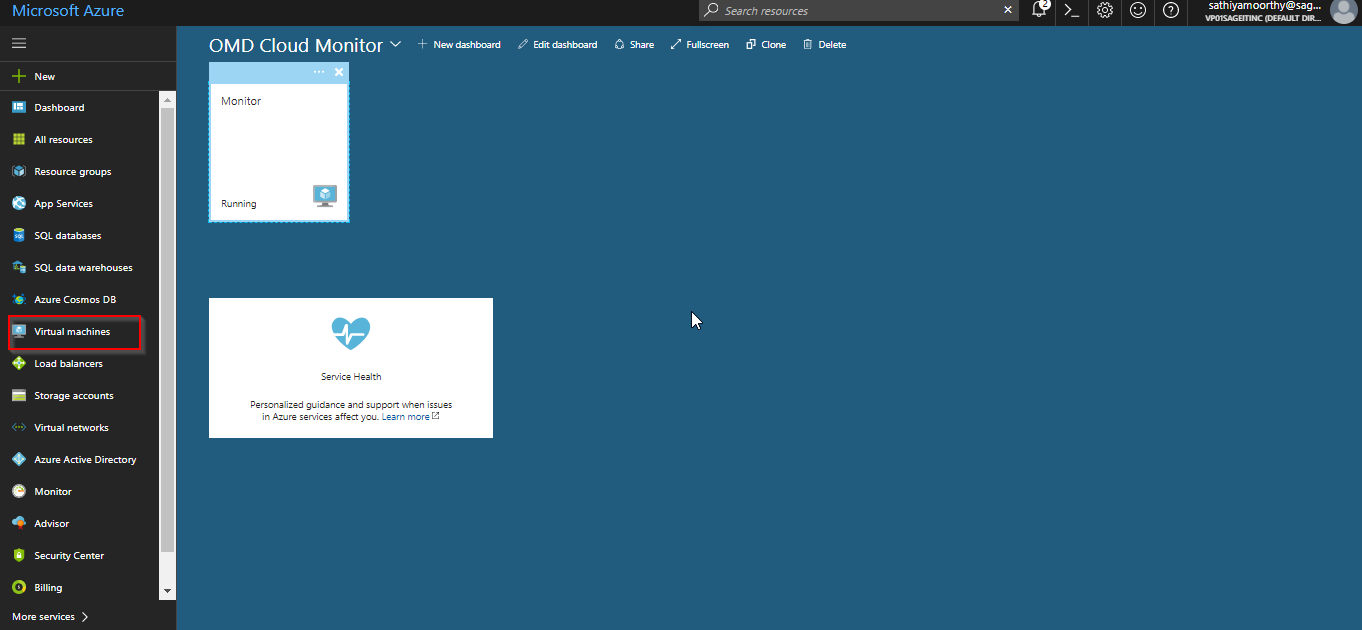
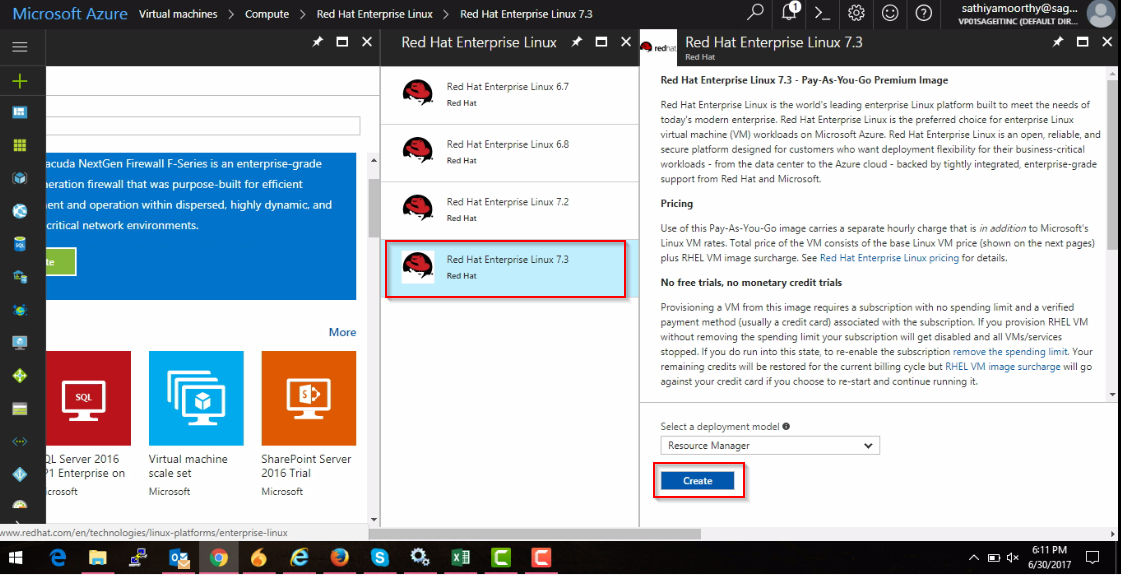
As like given in the screenshot proceed with creating new VM in the server after login with your credentials.
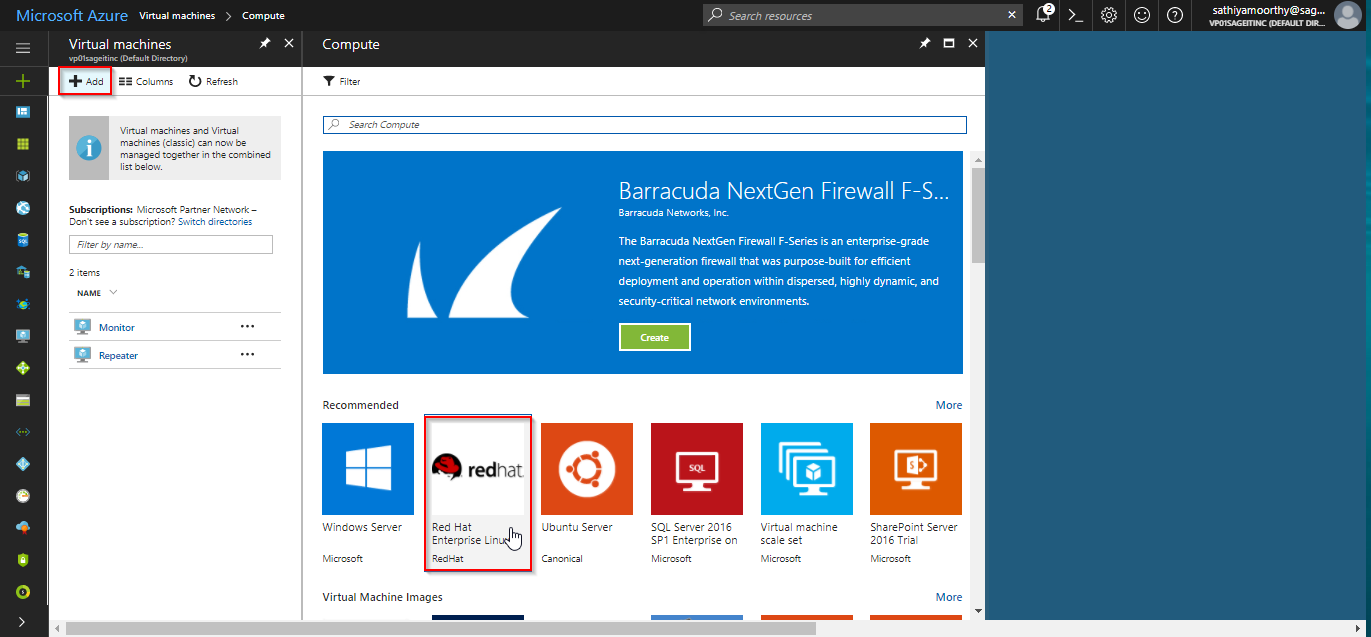
After directing to creation of new VM, lets select the type of OS that we required
Microsoft Azure is comparatively best service provider than any other cloud platforms. The Azure services are costly compare to other cloud services too. They provide a backup wizard at a particular region. When we run a backup wizard for VM then the backup wizard will take alpha backup of the whole VM to the storage blob services. Then proceed to take the changes of the VM every day or week or month or year according to the frequency that we set for the VM. Then the backup of the server will be used to create a new VM only. We cannot revert back the same server as like EXSi Server.I recommend to select the resource manager.
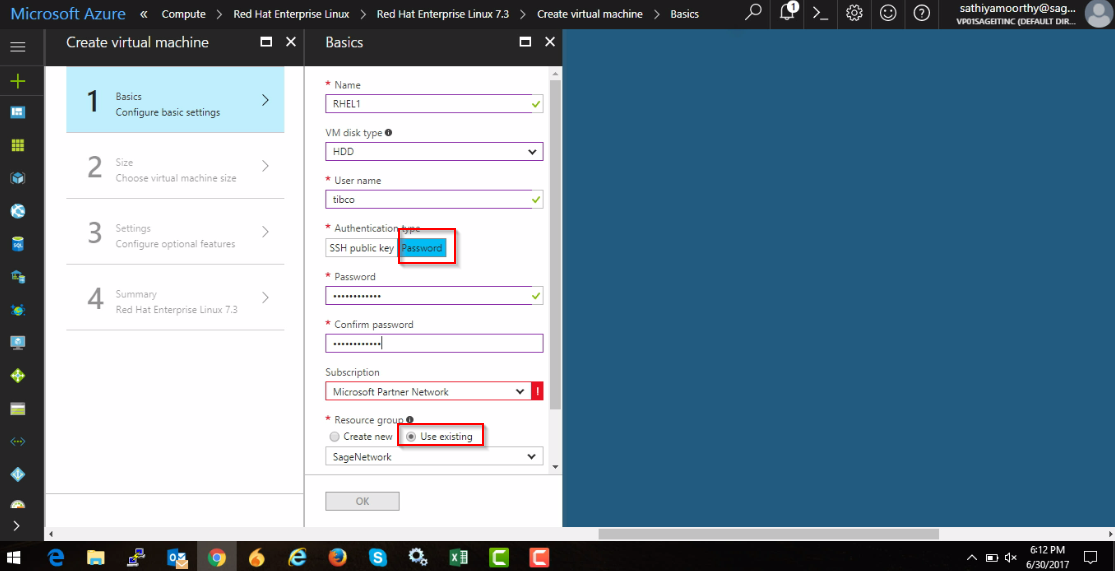
Fill all the required details and remember the password as well.
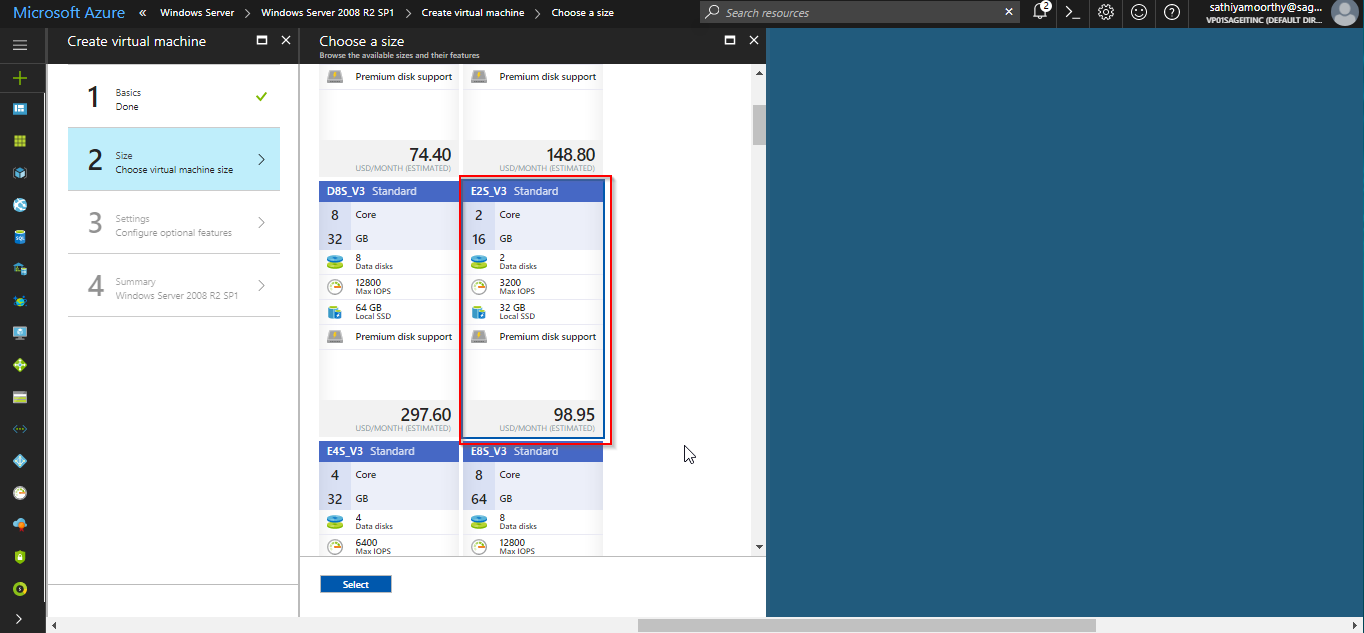
Select the specification as per your requirement, for this case I have selected 16Gb RAM.
To know the harddisk size of the E2S_V3 use the azure calculator.
Link: https://azure.microsoft.com/en-in/pricing/calculator/
Then select the un-managed disk.
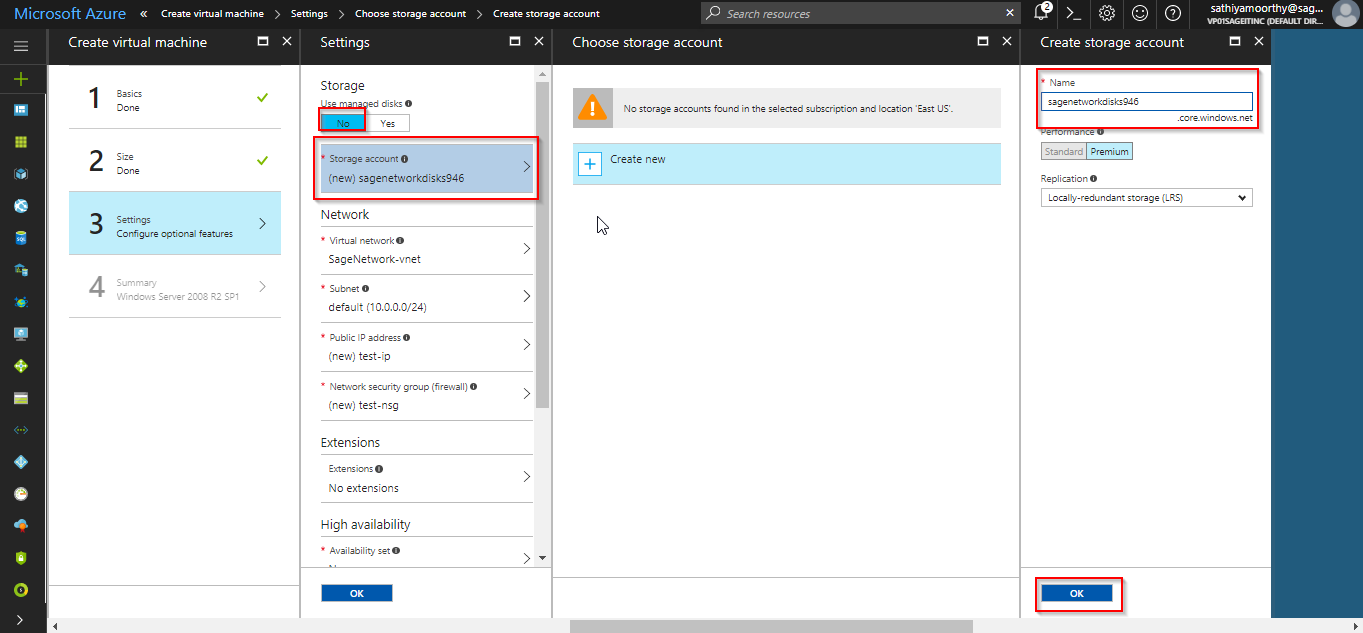
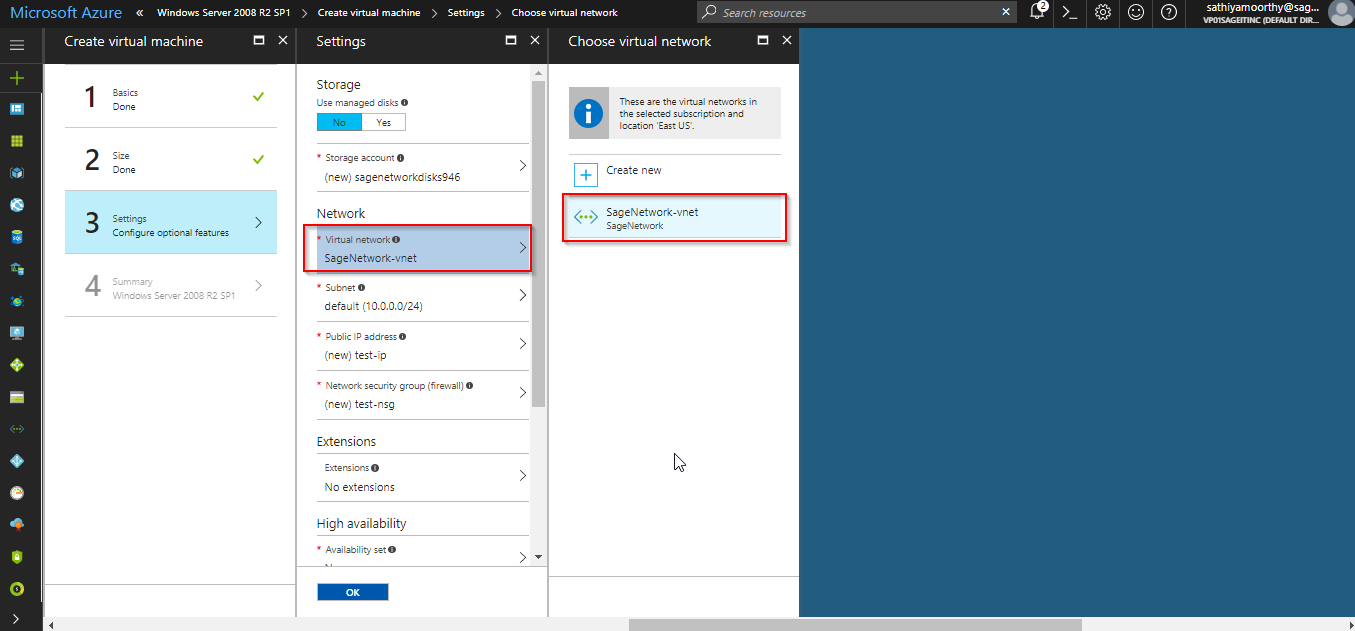
Create a new storage account for the new VM. All the VM’s are stored in VHD which is format of hyper visor. Create a virtual network if your creating network in new region. If you have already network at that location, then join that location.
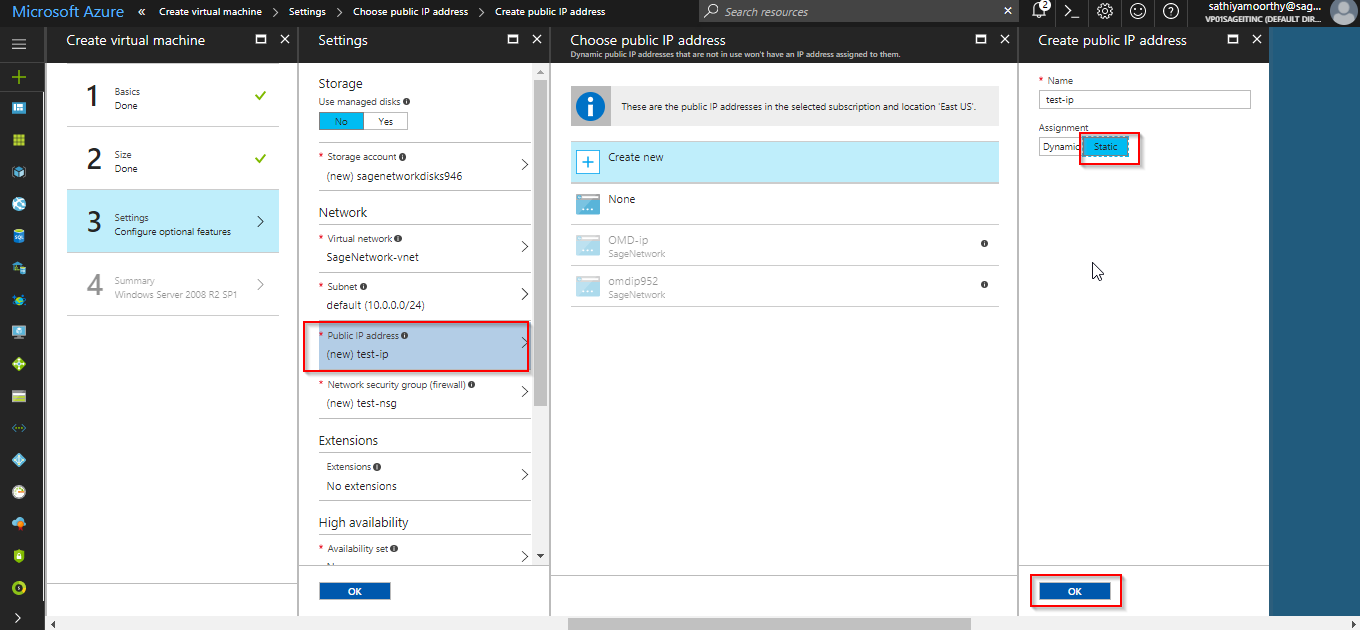
Use Static IP Address for the VM.
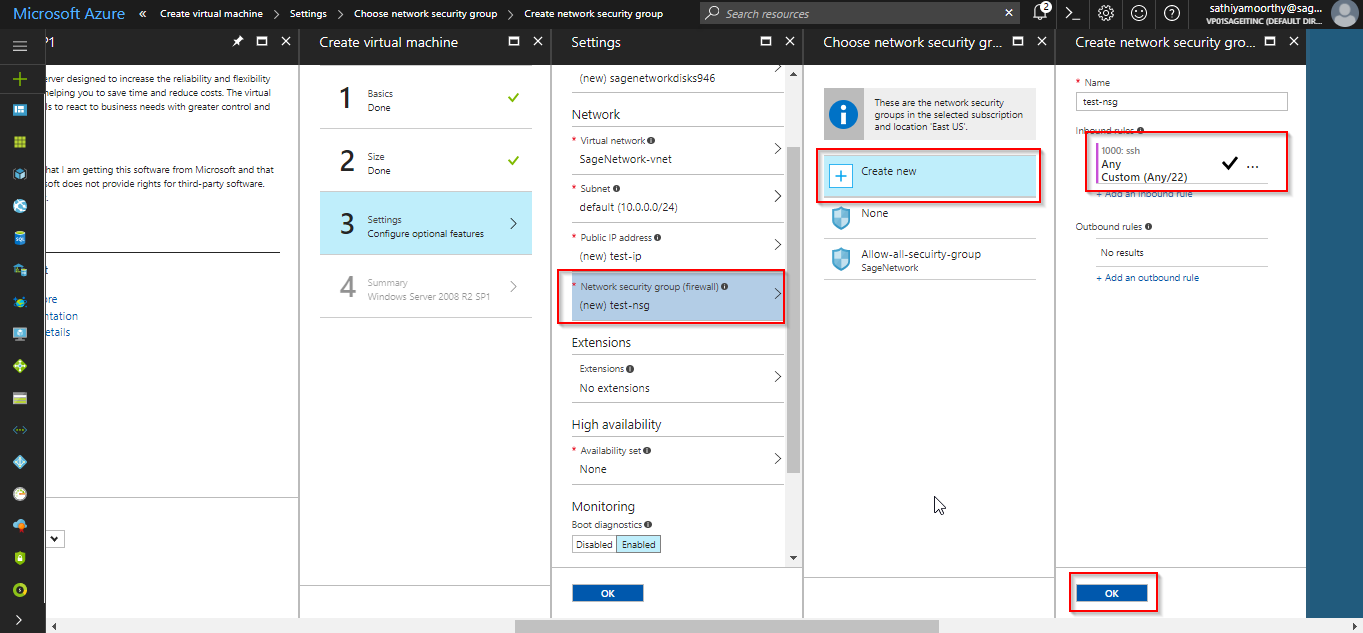
The default security group will allow the port 22 if the server is Linux. We can take SSH through putty application where we required. We can also restrict the source IP’s use the servers particularly.
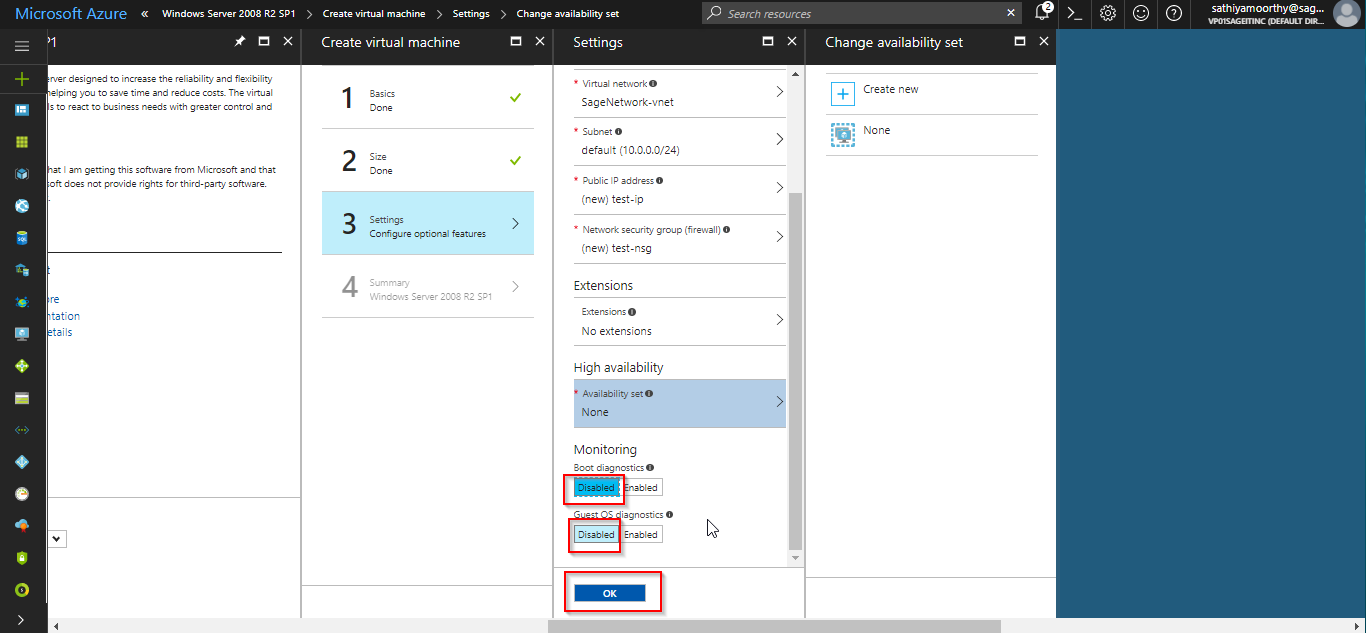
Monitoring diagnostics will create a separate storage account and start to monitor the Vm at its boot. So, we don’t require this option.
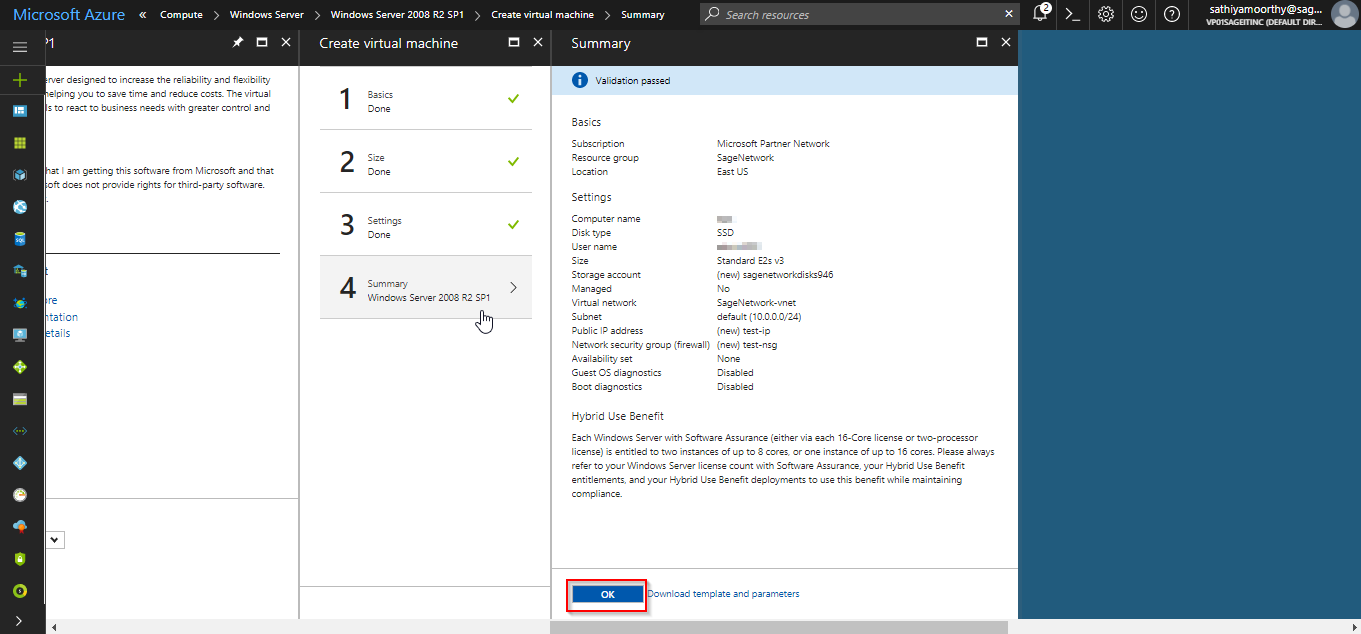
Verify all your required details and deploy the server.