
Backup Policy and Procedures:
1.Introduction:
The procedure is to backup documents belong to Sage IT Pvt Ltd., Users data. This documents will give detailed information about the backup data’s that are being practiced according to corporate policy and structure. The backup team has a responsibility to ensure that information and data which has been backed up can be restored in the event of deletion, loss, corruption, damage or made unavailable due to unforeseen circumstances.
1.1 Purpose:
The purpose of this policy is to identify and establish processes, procedures and good working practices for the backup. Data existing in both electronic and physical form. The backup process is involved only in backing up the data that exist in soft copy.
1.2. Scope:
It is essential to confirm that certain basic standard practices should be followed to ensure that data files are backed up on a regular basis. The application going to be used for the backup is Cobian Software which backup the file in three ways, such as Windows sharing, FTP and WebDAV. In this backup process FTP is going to be used for backup process.
1.3. Policy
Responsibility for backing up data on local desktop systems or laptops. This policy refers to the backing up of data that resides on individual Desktops, and laptop computers. This policy will also include the mobile devices. This policy does not cover end‐user information that is media files such as videos and music.
1.4. Departments in Sage IT Chennai Branch
In Sage IT Chennai office, we have the following departments
- Domestic IT Recruitment Team.
- IT-Development Team.
- IT-Infrastructure and Management Team.
- Accounts Team.
- HR Team.
2.Responsibilities:
2.1. Responsibilities of IT Administrators
- All IT backup and recovery procedures must be documented, regularly reviewed and made available to trained personnel who are responsible for performing data and IT system backup and recovery.
- Regular monitoring of the backup process through mails and logs. Team should maintain a record of job failures, with the re-running of any failed jobs logged in the backup software management console.
- All backups identified for long term storage must be stored at a remote secure location with appropriate environmental which is under control.
- The backup procedure should be standardized for all the branches of Sage IT.
2.2. Users Responsibilities
- Users must not store any data/files on the local drive of a computer which is unauthorized by the IT Administrator. Data (files) which are stored the unauthorized location will NOT be backed up at risk of exposure, damage, corruption or loss.
- Network sharing in Sage IT – LAN network strictly prohibited.
- Data sharing in network should always with guidelines of System Administrators.
- Qsync application will be installed to each and every user shared with particular team which is used to stop using the shared folder and vulnerability in the network.
- Qsync folder of their team need to be handled with care, because if the file deleted in the folder than it will be deleted for other team mates too.
- End user agreement need be followed.
Notes: End User agreement can be found in the following Link.
3.Quota
The Quota is allocated for each and every user. The Quota will differ from each and every group accordingly to the department. Each User will have their own account in the QNAP Storage device.
3.1. User Quota
The following are the quota for every department.
Development Team – 100 GB
Accounts & HR Team – 100 GB
Recruitment – 50 GB
This is used to standardize storage space for each and every user. This helps to store lot of spaces in QNAP Device.
4.Folder Structure:
4.1. Development Team
- C: user data
- D:/My projects.
- C: Spark downloads / spark chat history backup.
- C: %appdata% for filezilla FTP access credentials backup.
- All browsers bookmarks and site access login credentials passwords are should be backup.
4.2. Accounts Team
- C: user data
- E:/My Backup
- C: Spark downloads / spark chat history backup.
- Digital Signature / Certificates backup, HDFC input / Authorization DSC.
- All browsers bookmarks and site access login credentials passwords are should be backup.
4.3. Recruitment Team
- C:\ User data
- D:\ My Backup
- All browsers bookmarks and site access login credentials passwords are should be backup.
4.4.HR Team
- C:\ User Data
- G:\My Backup
- All browsers bookmarks and site access login credentials passwords are should be backup.
4.5.IT Administrators Team
- C: user data (45 GB)
- E:/My Data folders.
- All browsers bookmarks and site access login credentials passwords are should be backup.
5.Backup Schedule
The backup of the user’s data will take place each day from the user end in background.
5.1 Backup Schedule – Daily
The backup scheduling time for the department will differs from each department
The process of backup scheduled times are as follows.
IT – IMS Department: 11:00 am
IT – AMS Department: 11:30 am
Accounts and HR Department: 2:00 pm
Recruitment Department: 3:00 pm
5.2. Backup Types
- Full back up: All the files that the users put on those two folder that we mentioned will be the full backup for the first time. This backup will be followed by incremental backup forever as the client application is taking care of all the backup feature. If the user delete anything on backup folder will not be deleted by the backup server.
- Incremental backups: These type of back up Includes only files that have changed since the last Full or Incremental backup. The next time an incremental backup is done, this file is skipped (unless it is modified again).
5.3. Backup Best Practice
- We are going to create two folders for each user.
- The first folder is directly mapped using Cobian application with each user data by mapping the below location
- For example, C:\Users\chnadmin
- By mapping this location with Cobian application, we can directly back up the users document, outlook PST files, download documents, pictures, contacts and favorites.
- On the another folder we create in name of “username / Backup “in that folder we educate the users to drop their important data’s and files needed to be included in back up.
- These 2 folders are directly mapped by Cobian application and the data are backed up to QNAP storage device
5.4. Backup Process
We use daily and weekly rotation for backups.
1.Daily backups take place on a five to six-day rotation every business day.
2.Weekly backups begin automatically from Saturday 9 pm to Sunday in AWS Cloud.
Special backups may be made for longer continuing periods during special situations such as system upgrades and major projects.
Note: Old Users Backup can also be included in special backup cases.
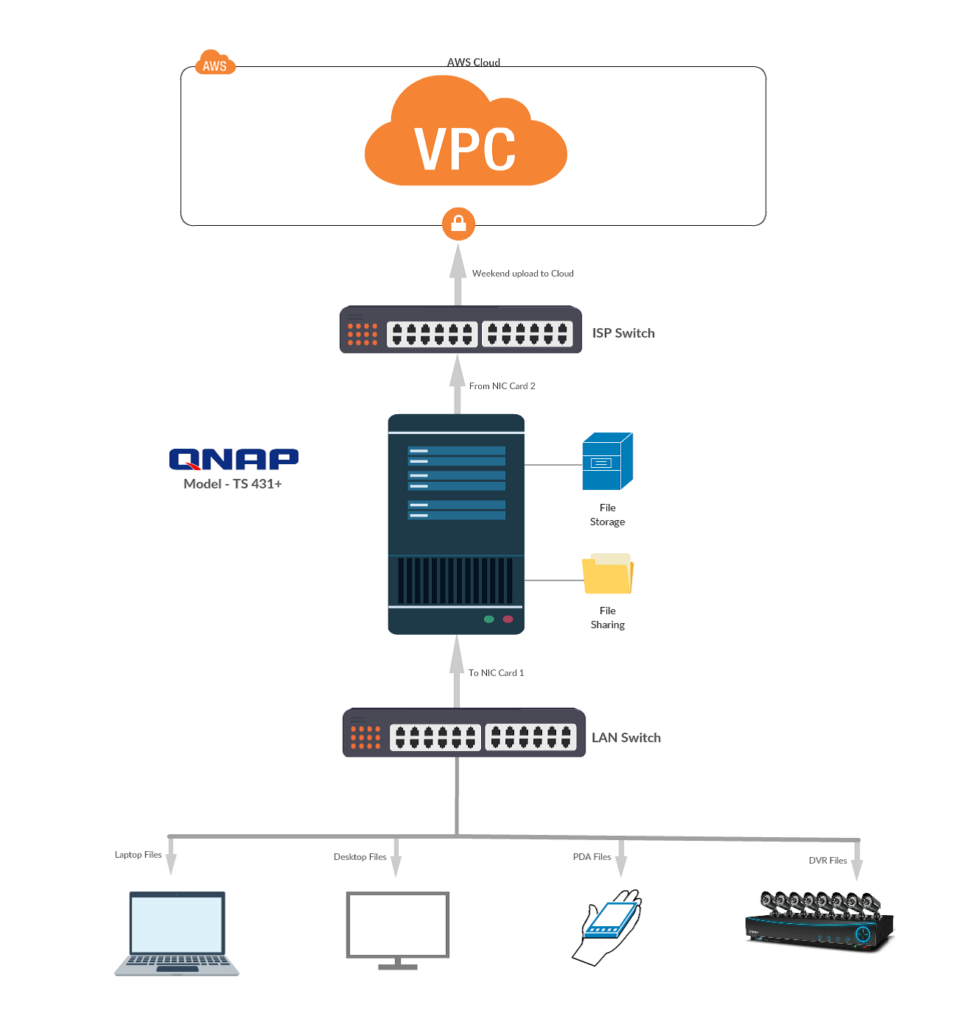
The Cloud backup will take place for every week ends. This backup place is carried out in order to reduce the bandwidth in business days.
5.6 Mobile Backup
The file from mobiles will be sent to the QNAP storage system using the Qsync android and IOS application.
Link for Installing QNAP in Mobile:
6.Additional Recovery
6.1. PC Control
- Control 1: Update virus definitions of installed Antivirus software and enable email scanning
- Control 2: Enable Windows Firewall
- Control 3: Disable file sharing
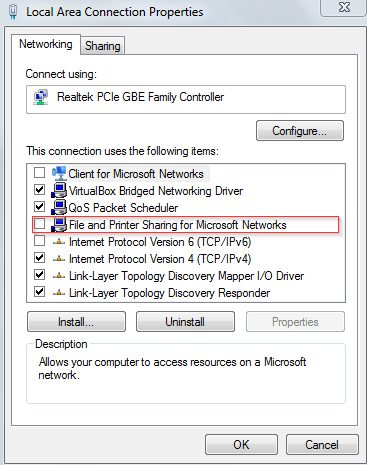
- Control 4: Installing Malwarebytes and update the definitions to the latest
- Control 5: Enable Windows defender and update the definitions to the latest
- Control 6: Use windows ‘backup and restore’ program to backup important file to QNAP Device
6.2. File Version
Enabling File version in all the systems. So if any documents are corrupted or unsaved will be taken backup from file version which is default option available in the Windows which need to be enabled.