
Procedure for Upgrading ESXI server version from 6.0 – 6.5:
STEP 1: Preparing the ESXI server appliance as an ISO bootable disk.
- Download the new version of ESXI server appliance from the below website.
https://my.vmware.com/web/vmware/details?downloadGroup=ESXI650&productId=614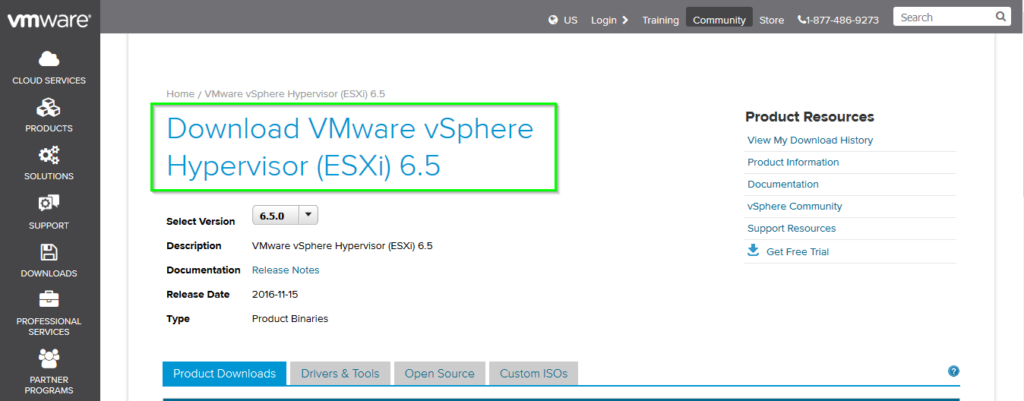
Then Download the ISO file and make as a bootable in a pen drive
STEP 2: Backup of all VM’s Before Upgrading ESXI server:
- It is important to take the backup of all VM before proceeding this migration process.Login to your ESXI server.
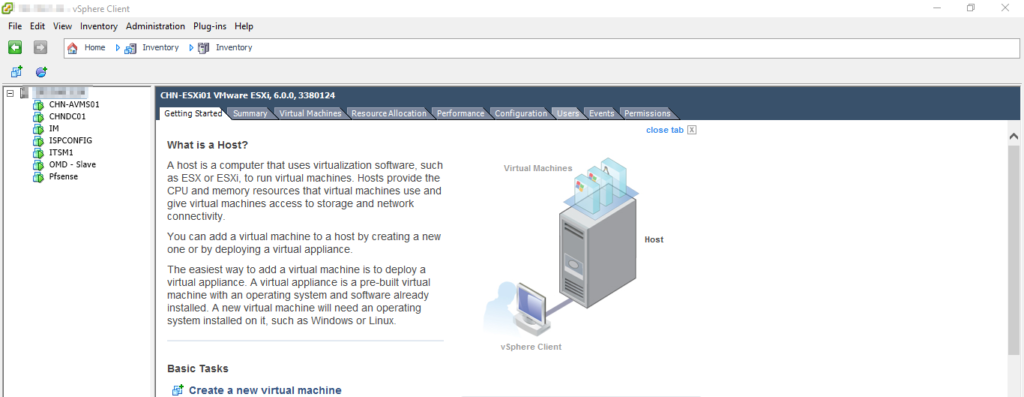
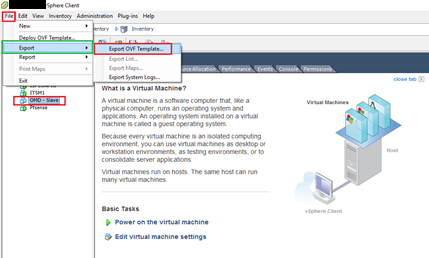
- Select the VM to take the backup and shutdown it properly.
- open File–>Export–> Export as as OVF template.
- Now enter the new name for the backup VM
- Select the directory location that we are going to save the back up of VM
- Give some description about the backup VM and click OK button
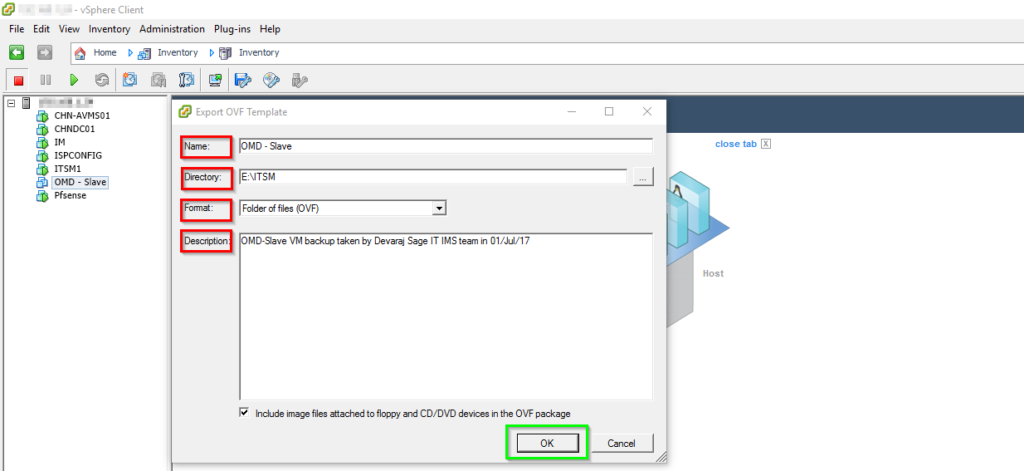
The VM exporting process has been started and we will get the successfully message once it has been completed.
After all the VM’s are backup successfully we move for upgrading the ESXI version from 6.0 to 6.5.
STEP 3 : Upgrading ESXI server:
- Prepare the ESXI server ISO as a bootable disc in your USB pendrive.
- Insert the USB drive pendrive in your SERVER.
- Login to your ESXI server.
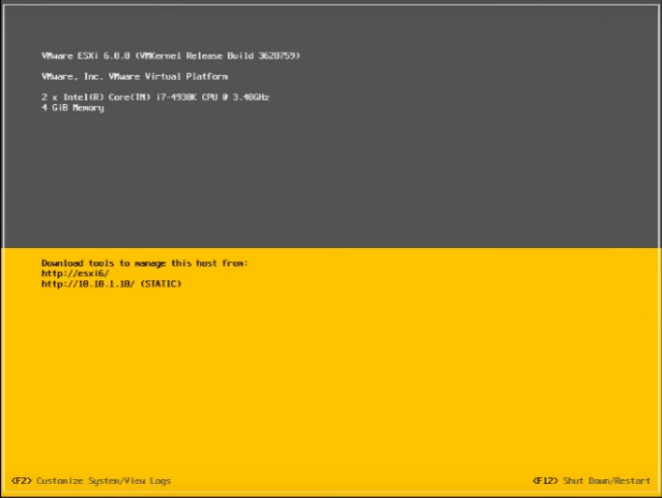
- Press the function F12 in your keyboard and restart the ESXI server.
- Enter the root login credentials to restart the ESXI server.
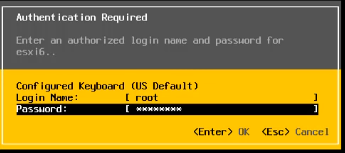
- Press the Enter key to restart the ESXI server.
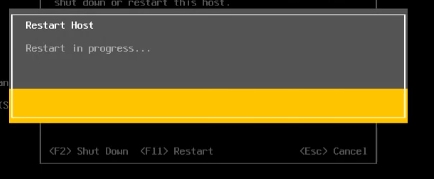
- The server has been restart and select the option boot from the pendrive–>Select the option ESXI-6.5-Standard installer.
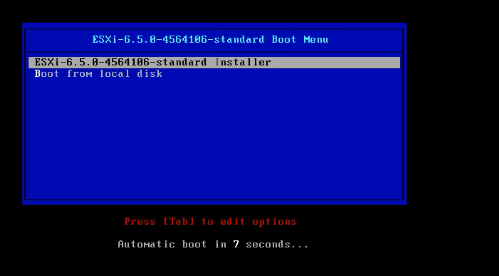
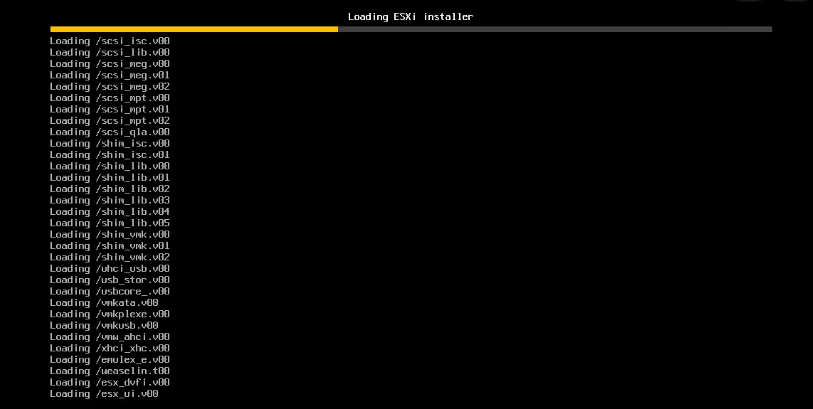
- Now the ESXI 6.5 will start to boot
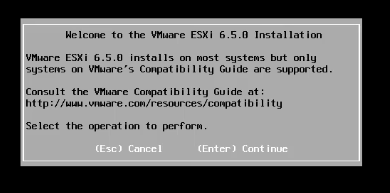
- Now the ESXI installation Welcome wizard display please press the enter key to continue.
- Now on the next wizard it’s a license & terms for installing the new ESXI 6.5 server version.
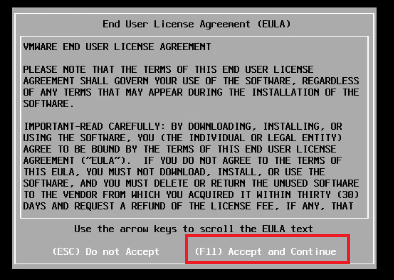
- Please press the function key F11 to proceed the installation,
- Then select the storage to install the new ESXI version.
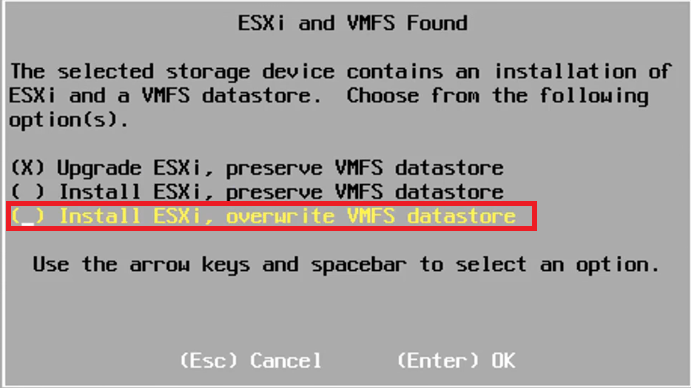
Now we have a 3 option to install or Upgrade our ESXI:
We have 3 methods to upgrade our ESXI server from version 6.0 to 6.5
Using GUI method, we can use
- Upgrade ESXI, preserve VMFS data store
- Install ESXI, preserve VMFS data store
- Install ESXI, Overwrite VMFS data store
Upgrade ESXI, preserve VMFS data store:
- Using this method, we can upgrade our old ESXI version with new ESXI version without disturbing our existing datastore.
- This method basically overwrites EXSI version 6.0 to 6.5
Install ESXI, preserve VMFS data store:
- Using this method, we can upgrade our old ESXI version with new ESXI version without disturbing our existing datastore files.
- The older version of ESXI will be removed and new version has been freshly installed.
Install ESXI, Overwrite VMFS data store:
- Using this method, we can upgrade our ESXI old version with new version with disturbing our existing datastore.
- This method completely removes the existing ESXI version 6.0 and format the existing datastore install new ESXI version 6.5 on the server.
In these scenario we are going to use the method 3 “Install ESXI, Overwrite VMFS datastore”
- Now the installation confirmation wizard will appear please press the function F11 key to proceed the installation process.
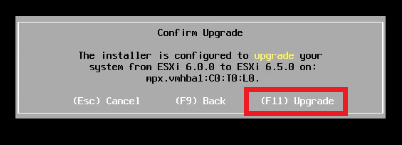
- The installation will begin and the installation progress bar will appear.

- Once the installation has been completed please remove the USB pendrive and restart the ESXI server.
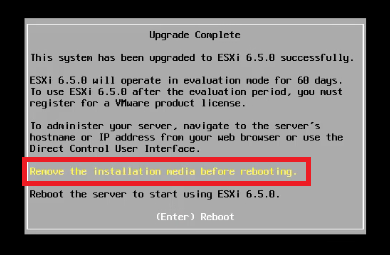
- Press the enter key to reboot.
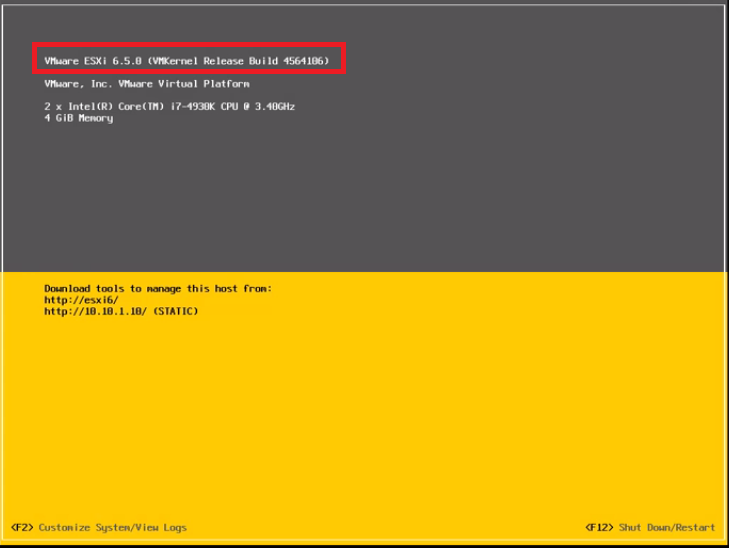
- Now the ESXI version has been successfully upgraded from 6.0 – 6.5
Conclusion:
Hence I included the procedure and process to be followed up while upgrading the versions of ESXI server from 6.0-6.5